For businesses
Claim and enhance your listing
Find your page in Account, check your reach, and walk through every tab of the listing editor: Info, Media, Events, Jobs, Booster, Visibility and more.

Part 1
Your listing is already live
Part 1
Your listing is already live
Most places already have a page on Local Eyes with photos, hours, reviews, a map and upcoming events. Claiming it simply puts you in control of that page — nothing is created from scratch. Here's what to check after claiming:
- 1Your one-line descriptionIn your own words.
- 2Hours, phone and websiteMake sure they're correct.
- 3Your best photosThe first photo is the cover.
- 4SocialsInstagram, Facebook, TikTok and Threads links under Follow us.
- 5A short AboutWhat the place is actually like.
Claim the listing, then tap the pencil on your own page to edit anything.
Part 2
Find it in Account → Listings
Part 2
Find it in Account → Listings
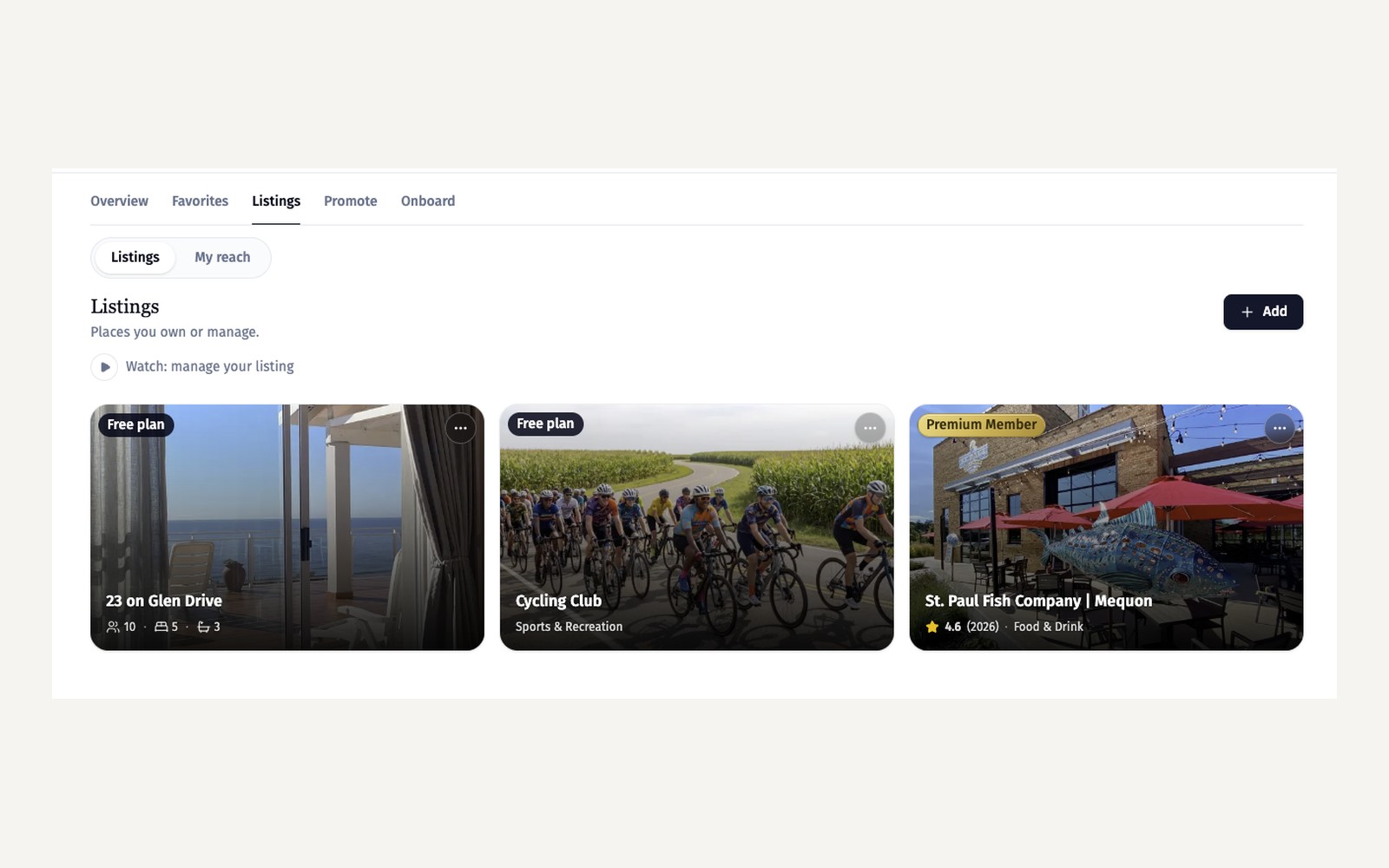
Open Account from the top menu and choose the Listings tab. Every place you own or manage appears here as a card with its photo, name and plan badge (Free plan or Premium Member). The Add button in the top right starts a brand-new listing, and the watch link plays a short video on managing your listing. Tap any card to open that listing's editor.
Part 3
See how it's doing with My reach
Part 3
See how it's doing with My reach
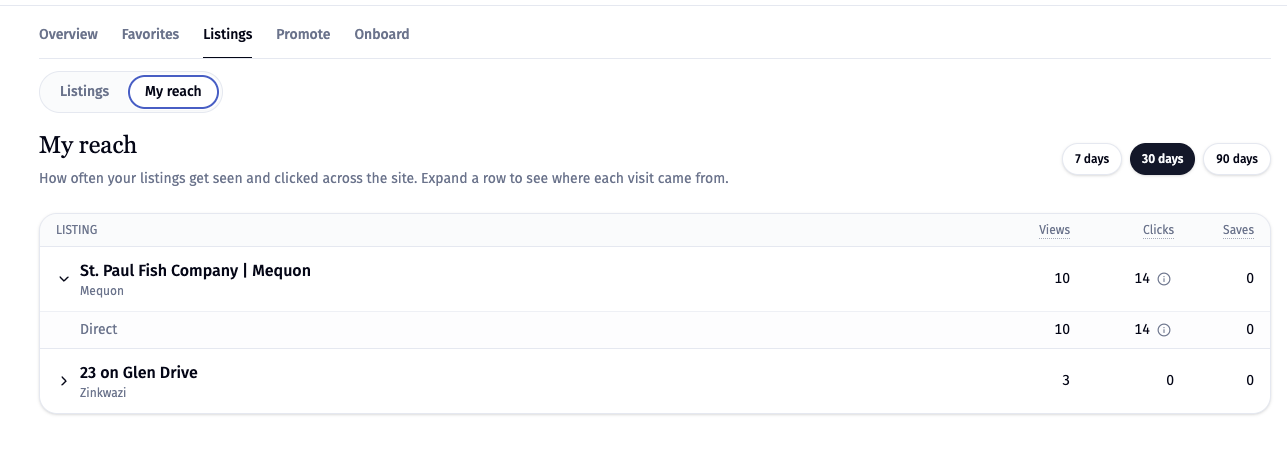
Still in Account → Listings, switch from Listings to My reach. You'll see views, clicks and saves for each listing, and you can expand a row to see where visits came from — search, social, or direct. It's the quickest way to tell whether your updates are working.
Part 4
Opening the editor
Part 4
Opening the editor
Two ways in: tap your listing's card in Account → Listings, or visit your public page and tap the pencil. Everything in the editor saves automatically about a second after you stop typing — there's no save button anywhere, and a message only appears if something fails to save.
Part 5
A tour of the tabs
Part 5
A tour of the tabs
The editor is organized into tabs along the top. Here's what each one is for:
- 1InfoYour basics: description, hours, phone, website, socials, address and map pin, plus services, menus and FAQs.
- 2MediaYour photos and videos — and for bands, music and a shop. The first photo is the cover everywhere your listing appears.
- 3EventsCreate and manage the happenings on your page, and print posters for them.
- 4JobsPost open roles; each runs for 30 days and can be reposted.
- 5BoosterTurn your story into a published guide that points back to your listing.
- 6VisibilityFour reports — Website, Search, AI and Social — showing how people find you and what to improve.
- 7MessagesYour welcome message and replies to people who message you from your page.
- 8AccessWho can manage the listing with you.
- 9MembershipYour plan and its benefits.
- 10OnboardA checklist of what's left to complete.
Part 6
Want more detail on a tab?
Part 6
Want more detail on a tab?
Several tabs have their own in-depth guide: Add an event for Events, Post jobs on your listing for Jobs, Your Media tab for Media, Booster Interviews for Booster, and Being visible online for Visibility. The sections below walk through the most important tabs one by one.
Part 7
Info: your basics
Part 7
Info: your basics
The Info tab is your listing's foundation. Write your one-line description in your own words, check your hours, phone and website, and add your Instagram, Facebook, TikTok and Threads links so they appear under Follow us. Your address and map pin live here too — drag the pin if it's not exactly on your door.
Part 8
Info: services, menus and FAQs
Part 8
Info: services, menus and FAQs
Further down Info, describe the services you offer and add a current menu where it applies — clear details help visitors decide before they arrive. Then answer the practical questions people always ask: parking, accessibility, reservations, what to expect. Update the answers when things change.
Part 9
Media: photos, video and music
Part 9
Media: photos, video and music
The Media tab holds every image on your page. The first photo is the cover — it's what shows on cards across the whole network — so lead with your best exterior or signature shot. Add, reorder and remove photos any time; changes save automatically. You can also add a YouTube or promo video, and bands can connect their music and shop here. The guide Your Media tab covers all of it.
Part 10
Events
Part 10
Events
The Events tab is where you create happenings, edit or remove them, and print posters and table tents with QR codes. Every event needs a real location, which is pulled from your listing automatically. For the full walkthrough — limits, tips for getting more saves, and printing — see the guide Add an event, also linked at the bottom of the tab.
Part 11
Jobs
Part 11
Jobs
Post open roles from the Jobs tab. Each job runs for 30 days and can be reposted when it expires. The guide Post jobs on your listing covers posting limits and how to write a role that gets applicants — it's linked at the bottom of the tab.
Part 12
Booster: your story as a guide
Part 12
Booster: your story as a guide
Booster turns the story behind your place into a published guide that links back to your listing. Answer a few questions in your own voice and keep it fresh over time. The guide Booster Interviews covers topic ideas and where the published guides show up.
Part 13
Visibility: how people find you
Part 13
Visibility: how people find you
The Visibility tab holds four reports — Website, Search, AI and Social — each with practical steps to improve your situation. The reports are one piece of a bigger picture: the guide Being visible online covers what makes a business findable, your website, reviews, search and AI results, and social media.
Part 14
Messages
Part 14
Messages
Turn on Hire messages to let people start a private conversation from your page. Write a welcome message in your own voice and reply from your inbox. The guide Message a business shows both sides of the conversation.
Part 15
Access and Membership
Part 15
Access and Membership
Access controls who can help you manage the listing — add a manager or staff member so you're not the only one who can update it. Membership shows your current plan and what comes with each tier.
Part 16
Onboard: what's left
Part 16
Onboard: what's left
The Onboard tab is a simple checklist of what's still missing — a description, enough photos, your hours. Work through it once and your listing is in great shape; after that, keeping it fresh is a few minutes a month.
Part 17
If your listing is a special type
Part 17
If your listing is a special type
Venues and hosts: the Programs tab is where you tell us what you host — weddings, private events, live music — so your listing appears in the right interest hubs, like Aisle for weddings or The Guest List for private gatherings. The guide What you host explains exactly where each choice displays. Stays keep the same editor but fewer tabs: Info, Media, Booster, Access, Membership and Onboard. Events and Jobs don't apply to bookable rooms, so they're hidden.